Role model for a multiservice structure: from role verification to access grid
In the multiservice project, authorization was initially role-based. As the number of roles grew, we shifted to access-based checks. We implemented a flexible model where users have a role and an organizational affiliation, roles define default access rights, and organizations can receive custom permissions. We also built an interface for business teams to manage roles and access rights, view change history, and roll back changes.
The Problem: Roles Were Multiplying, and Access Control Was Becoming a Mess
On a project where we were responsible for authentication, the mailing service, and several other services, our colleagues were responsible for internal services built on 1C-Bitrix. Access to each service was restricted based on the user's role.
How it worked:
-
Administrators could access their services after signing in.
-
Customers could access their public-facing services.
-
Support staff could access their own services.
Initially, this worked well. But the number of roles kept growing. New services, new use cases, and new user types were constantly being introduced. With every new role, we had to redefine which services and features it could access and which it couldn't.
Role-based checks became a bottleneck. We decided to introduce an access matrix: instead of checking a user's role directly, we would check the permissions assigned to that role.
First Iteration: Role + Organization + Permissions
We designed a model in which:
-
Each user had a role and an organization affiliation.
-
Each role had a default set of permissions — including access to services, supported authentication methods (two-factor, single-factor, SMS, phone number and code only, or combinations of methods), and access to functional modules.
-
Custom permissions could be configured for each organization and role.
What this made possible:
A user with the Manager role in Organization A could have one set of permissions. Another user with the same role in Organization B could have a different set. A third user in Organization C could have yet another configuration.
A role was no longer a rigid constraint. It became a template that could be customized for each organization.
How It Worked: The Complete Authentication Flow
Let's walk through the user's journey, from the login form to accessing a service.
1. Choosing an authentication method
On the login screen, the user selects either email and password or phone number and SMS.
2. Entering credentials
The user enters their credentials according to the selected authentication method.
3. Backend validation
The request is sent to the backend. The system checks whether the user exists, using either their phone number or email address, depending on the credentials provided.
4. If the user is not found
The system displays a message:
"No user with these credentials exists. Please check your details or register."
5. If the user is found
The system checks which authentication methods are available for the user's role. If the selected method is not permitted, the user is prompted to sign in using an available alternative. The authentication process then continues according to the user's role configuration.
6. Service selection menu
After authentication, the user is redirected to a menu where they can select a service.
-
If the user belongs to the internal staff category, they can access two categories of services: internal services and external-facing services. Otherwise, only services intended for external users are available.
-
The displayed services are determined by the role's permissions. Services the user is not authorized to access are not shown.
7. Authentication into a service via OAuth 2.0
When the user selects a service, we authenticate them through OAuth 2.0. After the systems complete the handshake, the target service requests the user's current permissions. Our system then returns the relevant permission set via an API in JSON format.
Once authentication is complete, the target service stores the permission set in the user's session.
8. Using the service
The user can now work within the service according to the permissions assigned to them.
9. API users
API users are also assigned permissions using the same model.
System Growth: The Role Model Could No Longer Keep Up
As the system grew, we had to expand the role model itself.
How things evolved:
-
In the early stages, the role model was static — the set of roles and permissions was predefined.
-
Later, the business regularly requested new roles and permissions that required development work.
-
Requests also emerged to change the permissions available to specific organizations.
Every change became a development task. The business had to wait, and the engineering team spent time on repetitive configuration updates.
The Solution: A Role Management Interface
We proposed giving the business team an interface for managing the role model themselves. The proposal was approved.
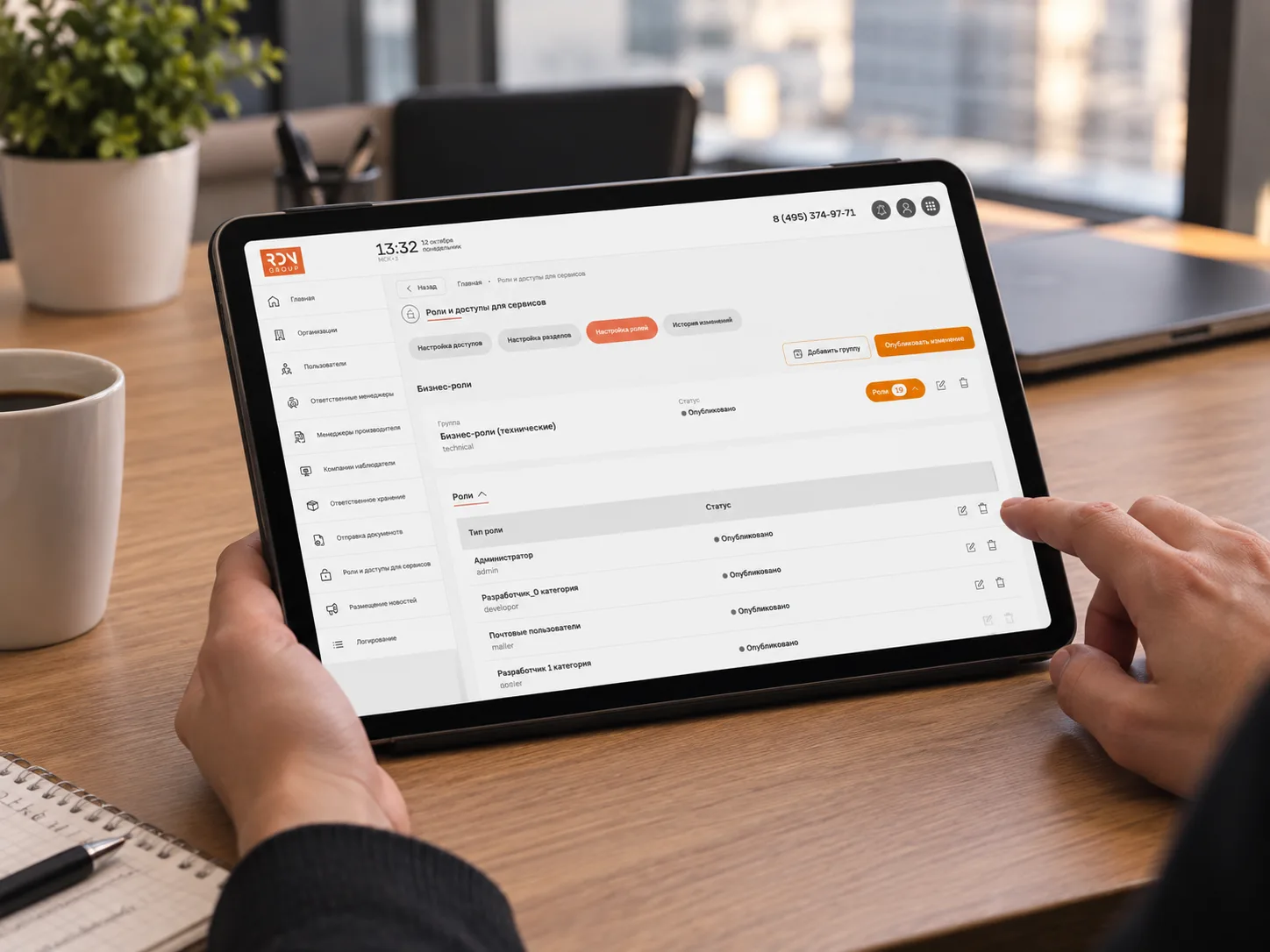
We built the interface into our user and system management application using Laravel + Vue.js.
What users could do through the interface:
-
Create role groups and individual roles.
-
Assign each role both a Latin-script name and a Cyrillic name.
-
Specify whether a role was internal or external.
-
Create permission groups and individual permissions.
-
Assign each permission both a Latin-script name and a Cyrillic name.
-
Use the Latin-script permission name as the identifier for permissions referenced by the systems.
Change History and Rollback
We implemented role model change history. Administrators could roll back to any previous state if something went wrong or if an earlier configuration needed to be restored.
The Main Feature: The Access Matrix
The core of the interface was an access matrix mapping permissions, services, and roles, where administrators could explicitly grant or deny access.
Each organization's editing page included a similar matrix, allowing administrators to manage its roles and the permissions assigned to them.
This gave the business team greater autonomy: they could modify the role model without involving developers.
The Result: A Flexible Model and a Management Tool
We did more than develop a flexible role model tailored to the business's needs. We also created an interface for managing that model.
Technology Stack
-
Backend: Laravel (PHP)
-
Frontend: Vue.js
-
Authentication: OAuth 2.0
-
Data exchange: API, JSON
Key Lessons Learned
1. Role-Based Checks Don't Scale
As the number of roles grows, checking access directly by role becomes difficult to maintain. Permission-based access control is a more flexible and predictable approach.
2. Context Matters: The Same Role Can Have Different Permissions
A user with the same role can have different permissions in different organizations. This is a common reality in B2B systems, and the access model must account for it.
3. Business Teams Need Tools, Not a Queue of Development Requests
If the business regularly requests changes to roles and permissions, give them an interface to manage those changes. It frees up engineering capacity and helps the business move faster.
4. Change History Is Essential
The role model is a critical part of the system. The ability to restore a previous state provides a safety net against configuration errors.
Conclusion
This is a story about a system outgrowing its original access model. Instead of endlessly patching the existing implementation, we rethought the approach: moving from role-based checks to a permission matrix, and from manual changes to a dedicated management interface.
A flexible access model + a self-service management tool = a system that grows with the business.